Quick-Start Guide
VIAME (Video and Image Analytics for Multiple Environments) is a do-it-yourself AI system for analyzing imagery and video, primarily targeting marine species analytics but also useful as a general computer vision toolkit.
Important Links
- Main website: https://www.viametoolkit.org/
- Public Web Instance: https://viame.kitware.com
- Manual: https://viame.github.io/VIAME/
- GitHub: https://github.com/VIAME/VIAME
- Bug reporting: https://github.com/VIAME/VIAME/issues
https://github.com/Kitware/DIVE/issues - Additional Discussion: https://discourse.kitware.com/c/viame-dive
- Tutorial videos: https://www.youtube.com/channel/UCpfxPoR5cNyQFLmqlrxyKJw
- Additional Help Contact: viame-web@kitware.com
There are 5 types of documentation: this quick-start guide, tutorial videos, user forums, example readmes, and the full manual. Installers (pre-built binaries), docker images, and source code are hosted on GitHub. Pre-built binaries are for users, while the source code and build instructions are for developers.
VIAME Flavors
VIAME comes in a few different interfaces with slightly different capabilities. Not listed in this document thoroughly are programming APIs for developers.
DIVE – Web and Desktop Annotator
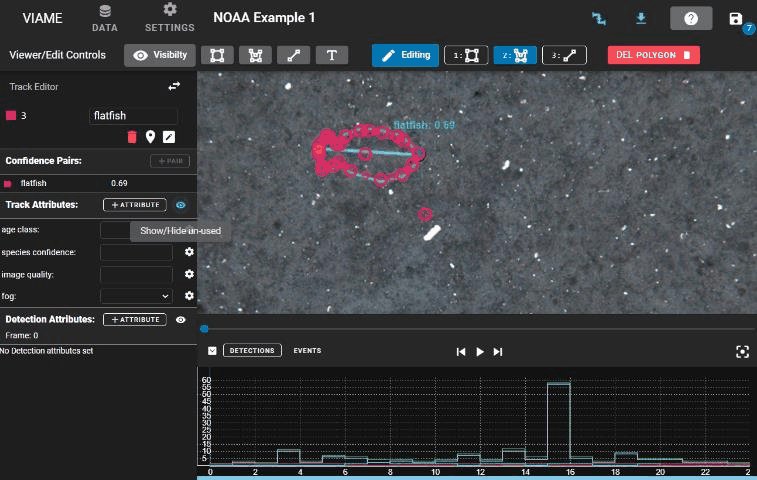
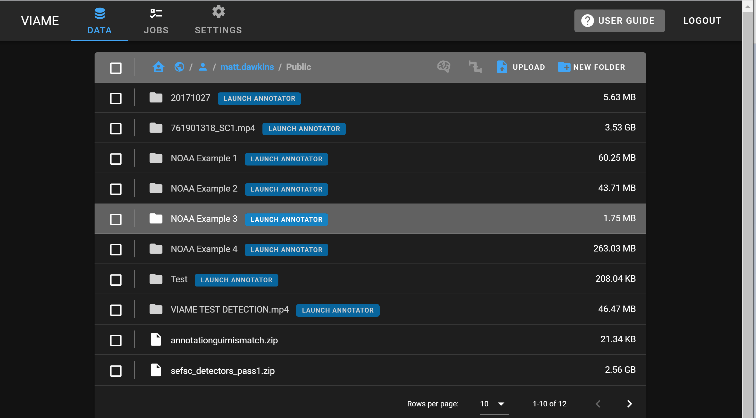
Originally created as the VIAME-Web interface (with a public server hosted at https://viame.kitware.com), a desktop version of this web annotator and model trainer is also available in both Windows .msi installers and .zip release formats.
This tool is currently the most general purpose annotator, and supports polygons, lines, points, or boxes, and can train models over multiple videos or image sequences using standard models. See the DIVE interface pages for how to use it, and user interfaces for the ways of launching it.
Project Files
Project files are a collection of scripts targeting either groups of images or videos. They are documented on the project folders page. Project files are also used to launch some of the annotation GUIs in the desktop version of the software, or to train models across multiple sequences headless (without a GUI) to prevent the GUI from using any system resources while training, e.g. VRAM, reserving more for the training process.
Example Folders
In the “examples” folder of a VIAME install are a series of standalone .bat (Windows) or .sh (Linux) launchers broken down based on functionality covering all aspects of the system. See scripts and example folders for what each folder contains.
Command Line Interface
Everything VIAME does can be run from a terminal through the viame command, which suits batch processing, scripted workflows and machines without a display. See the command line interface page for its commands.
Deprecated Interfaces
Three older desktop tools remain in the installers for a few specialized cases, but are no longer developed now that DIVE covers what they do:
- VIEW: the original C++ annotator for boxes and polygons, still quick on very high resolution imagery, see VIEW interface
- SEARCH: standalone image and video search, refined by feedback on the results
- SEAL: box annotation across 2 to 4 camera views side by side
Capabilities Breakdown
Y Supported P Partial N Not supported
| Feature | Examples | Project Files | Command Line | DIVE Desktop | DIVE Web |
|---|---|---|---|---|---|
| Platform | |||||
| Included in the desktop installers | Y | Y | Y | Y | N |
| Runs in a web browser from a remote server | N | N | N | N | Y |
| Runs without a display, for batch scripts | Y | Y | Y | N | P¹ |
| Docker images provided | Y | Y | Y | N | Y |
| Annotation | |||||
| Boxes, polygons, keypoints and lines | P² | P² | N | Y | Y |
| Point-click segmentation | N | N | N | Y | P³ |
| Multi-camera and stereo annotation | N | N | N | Y | Y |
| Tiled large images (GeoTIFF) | N | N | N | Y | Y |
| Review grid across datasets | N | N | N | Y | Y |
| Processing | |||||
| Detection and tracking pipelines | Y | Y | Y | Y | Y |
| Stereo measurement pipelines | Y | N | Y | Y | Y |
| Interactive stereo measurement | N | N | N | Y | P³ |
| Image and video search with refinement | Y | Y | Y | Y | P⁴ |
| Text query | Y | N | Y | Y | N |
| Image enhancement output | Y | N | Y | Y | Y |
| Registration and mosaicing | Y | Y | Y | P⁵ | P⁵ |
| Scoring and evaluation | Y | N | Y | Y | Y |
| Annotation format conversion | Y | N | Y | Y | Y |
| Training | |||||
| Detector training over multiple sequences | Y | Y | Y | Y | Y |
| Frame classifier training | Y | N | Y | Y | Y |
| Tracker training | Y | N | Y | Y | Y |
| Add-on model pack downloads | N | N | Y | Y | P⁶ |
¹ Through the REST API
² Launches DIVE
³ Smaller models, run in the browser
⁴ Image queries only, models cannot be saved
⁵ Registration only, no mosaic output
⁶ Server administrators only
GPU vs CPU Installations
VIAME is designed to run on 8 Gb+ VRAM NVIDIA Graphics cards (1 or more), but:
- Many algorithms can run with less and a generic 4 Gb patch is available on the install page
- Also depends on if talking about just inference (pre-trained model running, uses less) or training
- This is just for algorithms and processing pipelines; annotation GUIs can be run on CPU
- The GPU and CPU installers are both listed in installing VIAME from binaries
Additionally:
- Some algorithms are meant to run on CPU (motion tracker, baseline pixel classification)
- Some algorithms are meant to run on GPU, but can run on CPU (deep frame classification)
- Some are designed for GPU, and can run on but take forever on CPU (most deep CNN detectors, many deep learning training routines)
How do I know if I have a GPU?
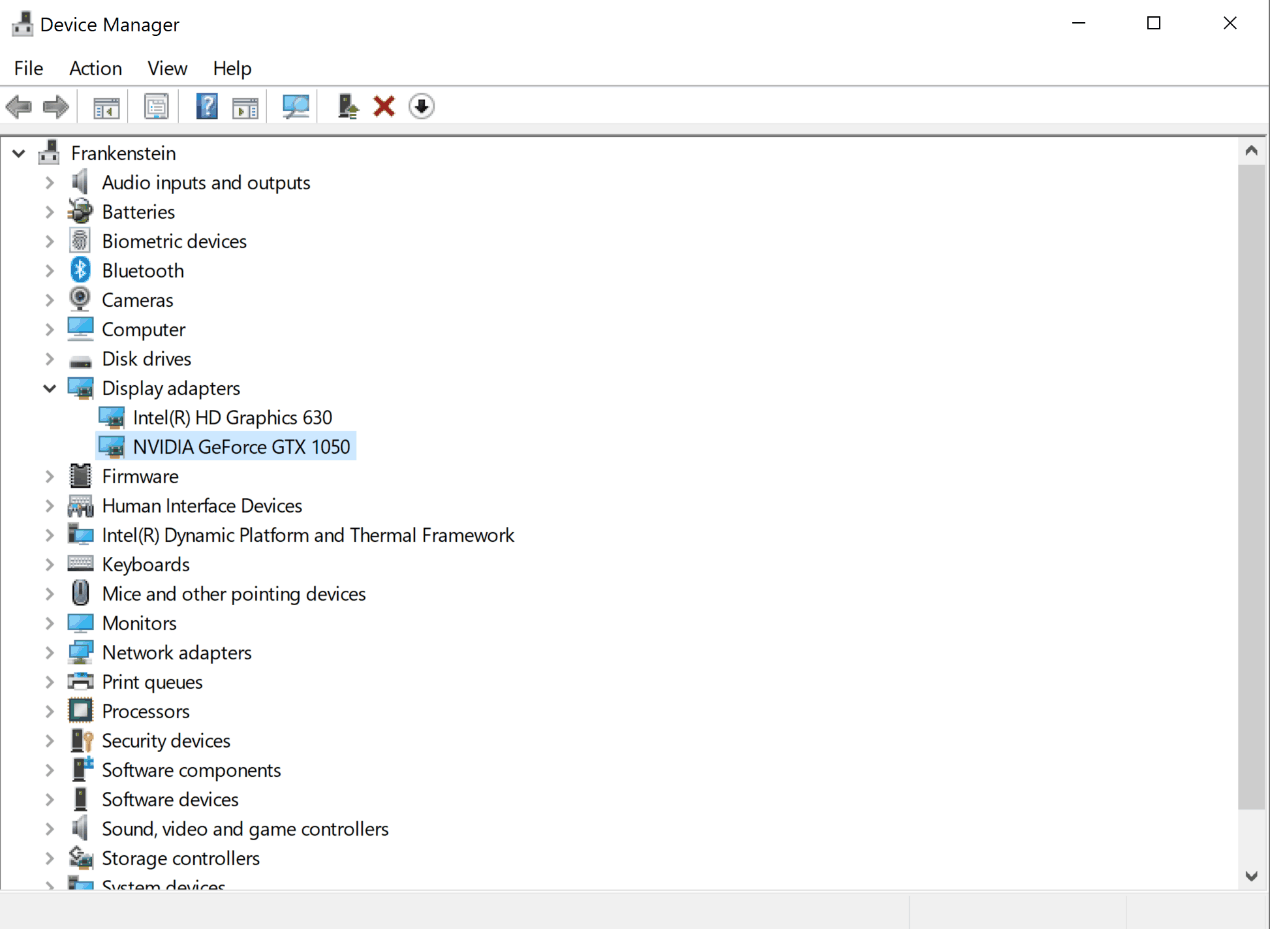
On Windows, look in Device Manager. Sometimes computers have more than one card (one embedded on the motherboard, then a 2nd in a plugin slot). Next, search for the card to know its specifications. On Linux, many terminal commands can tell you which GPU you have (e.g. nvidia-smi, lspci | grep -i nvidia).
Types of Annotation and Detection Models
There are four main types of annotations and detection models:
Box-Level: A bounding box around the object of interest. |
Frame-Level: The entire frame is classified (e.g. the whole image has a label). |
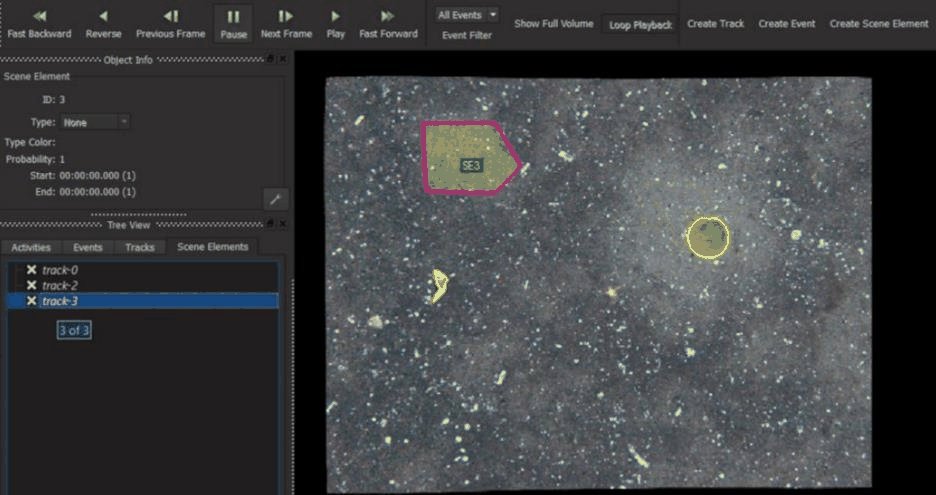
Pixel-Level: Pixel masks or polygons tracing the exact outline of objects. |
Keypoints: Specific points of interest on objects (e.g. head, tail). |
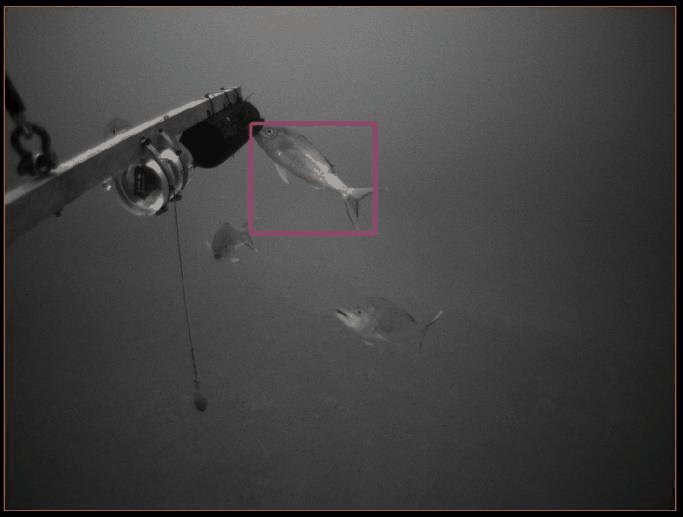
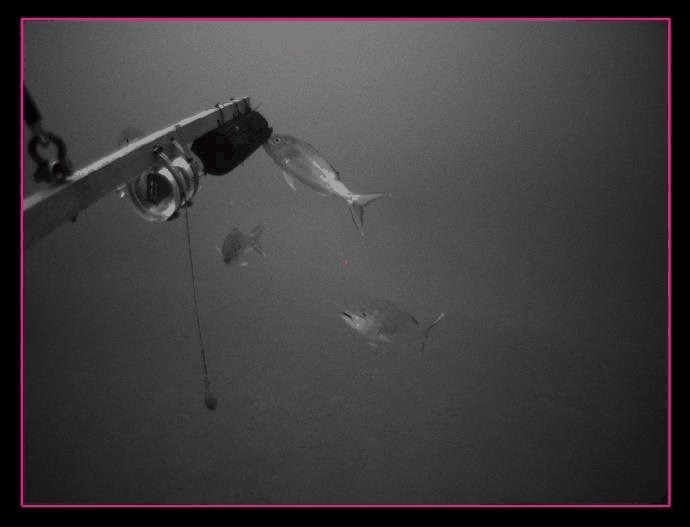
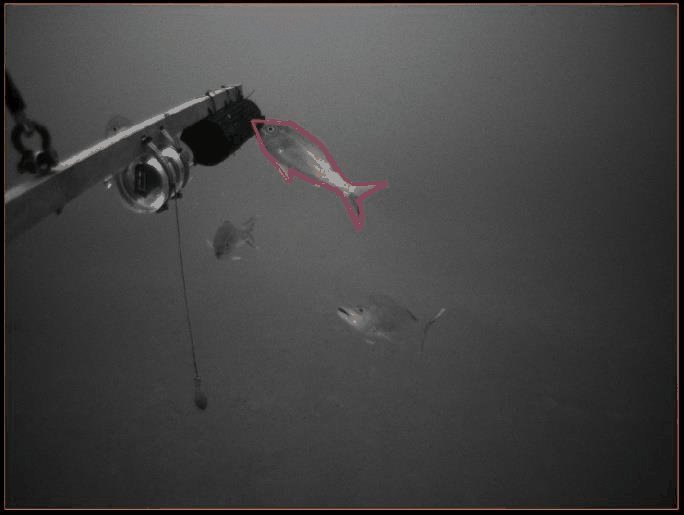
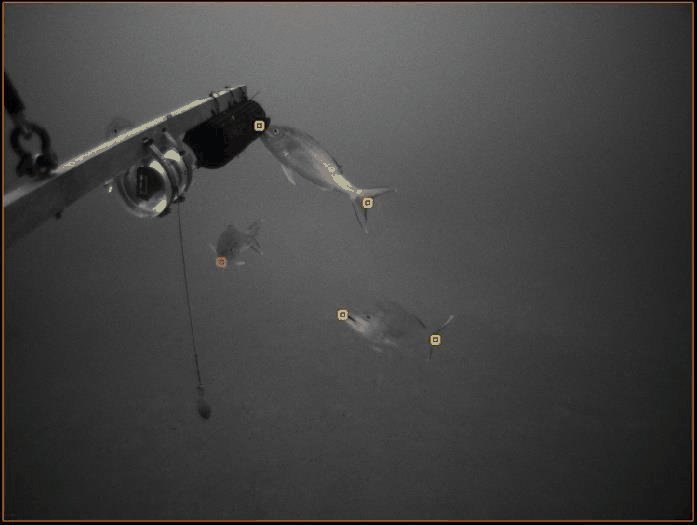
Each type has a page of its own, see object detection, frame level classification and scene segmentation, alongside detector training for training models of each.
Detections vs Tracks
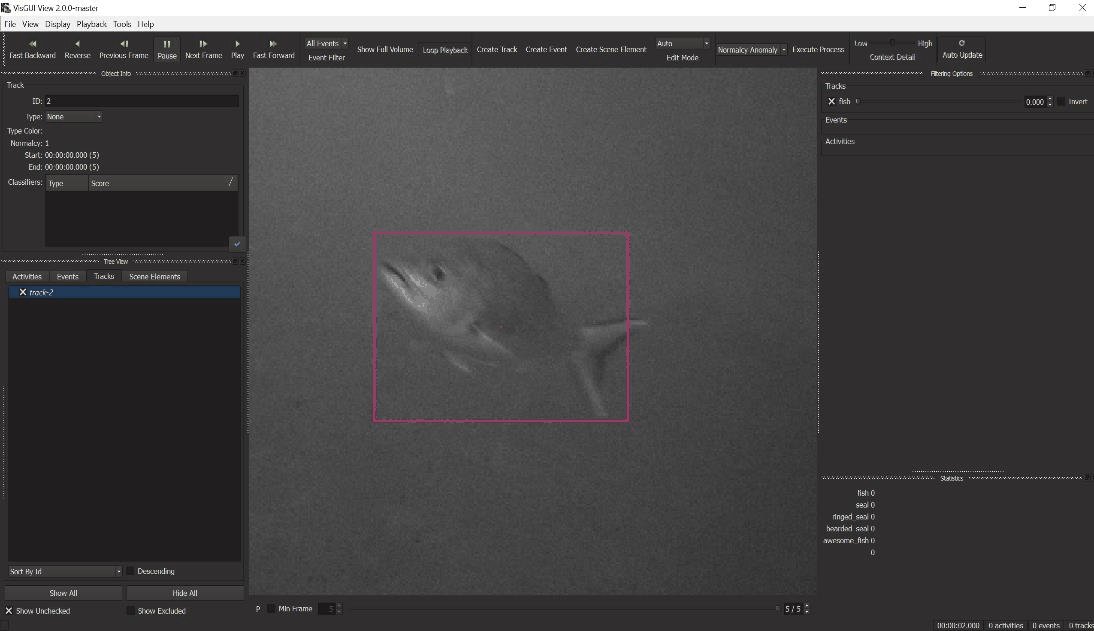
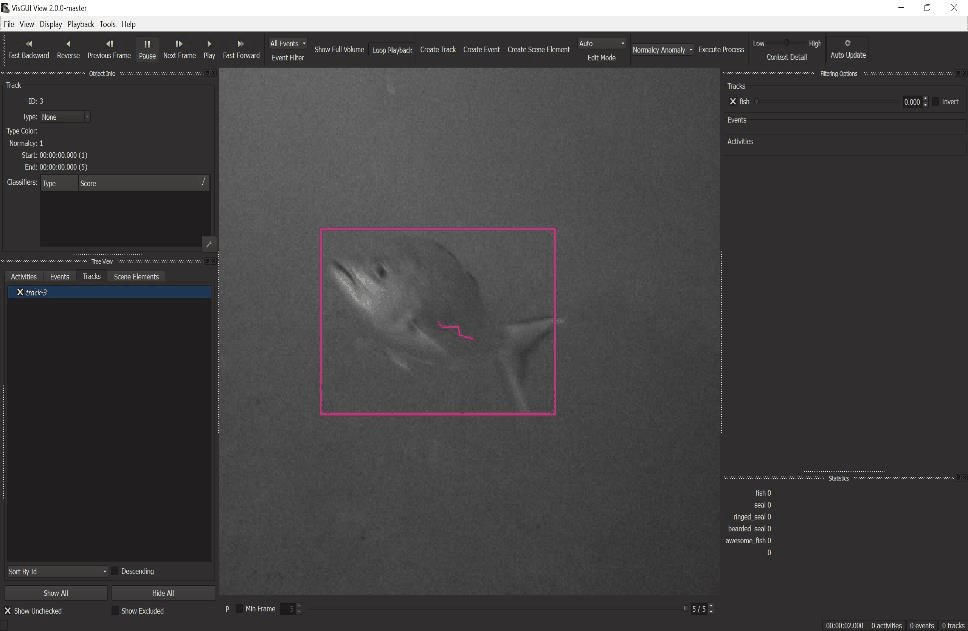
Detections and tracks are synonymous across examples and user interfaces. A track is a (temporal) sequence of single-frame detections, but a detection can also be viewed as a track with just a single state. See object tracking for the tracking pipelines.
Detection |
Track |
Annotation Formats
For details on annotation file formats, see the Detection File Formats section.
VIAME-CSV is the primary input/output format supported by default, with a single line for either each detection, or each detection state in a track. It has 9 required fields comma separated, with optional additional columns for keypoints, attributes, polygons, and masks.
COCO JSON adaptation is also supported by some GUIs, with added track support.
Annotation Best Practices
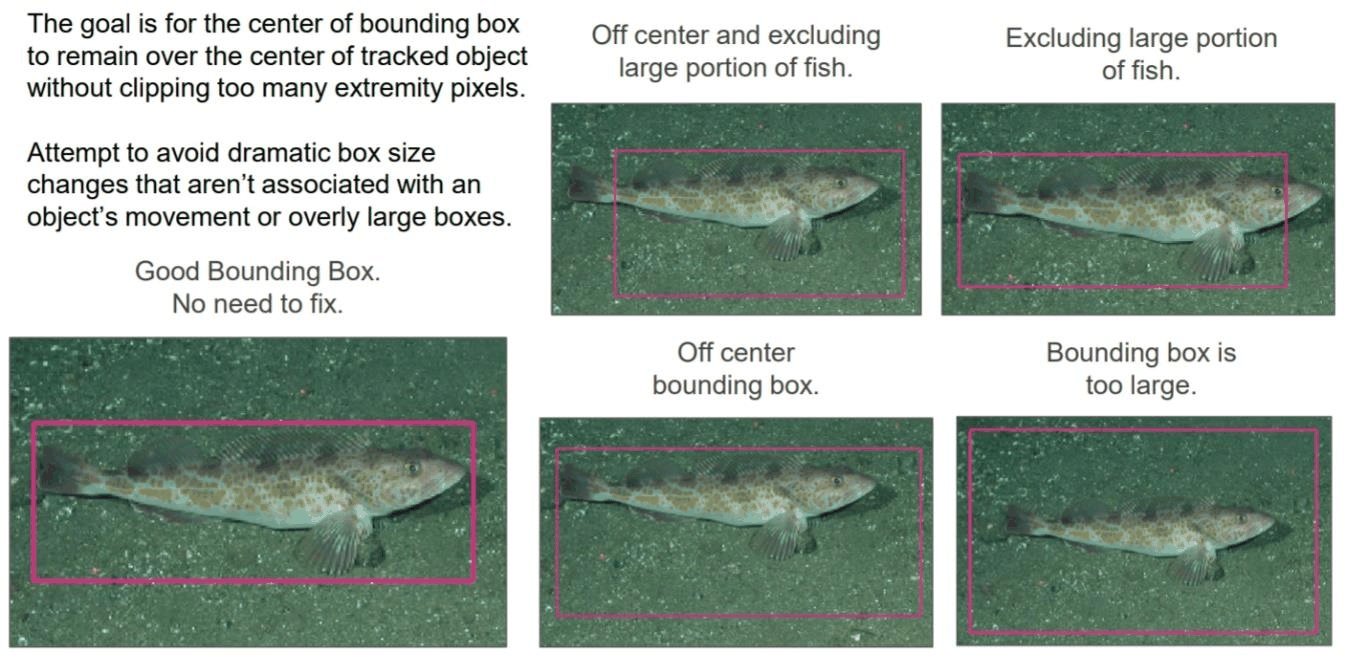
When creating bounding box annotations:
- The goal is for the center of bounding box to remain over the center of the tracked object without clipping too many extremity pixels
- Attempt to avoid dramatic box size changes that aren’t associated with an object’s movement or overly large boxes
- Need to consider efficiency (time) vs quality tradeoffs when deciding to do boxes vs pixel masks, box quality, keypoints + boxes, etc.
The DIVE annotation quickstart covers drawing each of these in the interface.
Model Generation Workflows
There are several routes from raw imagery to a working model, from annotating everything by hand to searching by text or example. See model generation workflows for the steps of each and how they compare.